Please Donate To Help Us Run This Site

Bookmarks Toolbar & Bookmarklets Details
(This page was last updated on the 26/02/2026)We are always happy to recommend the really useful MyOSINT.Training Bookmarklets, however we are aware that some people struggle with locating and turning their Browsers Bookmarks Toolbar on, and setting up their Bookmarklets, we hope the below will help some people new to OSINT.
Bookmarks Toolbar
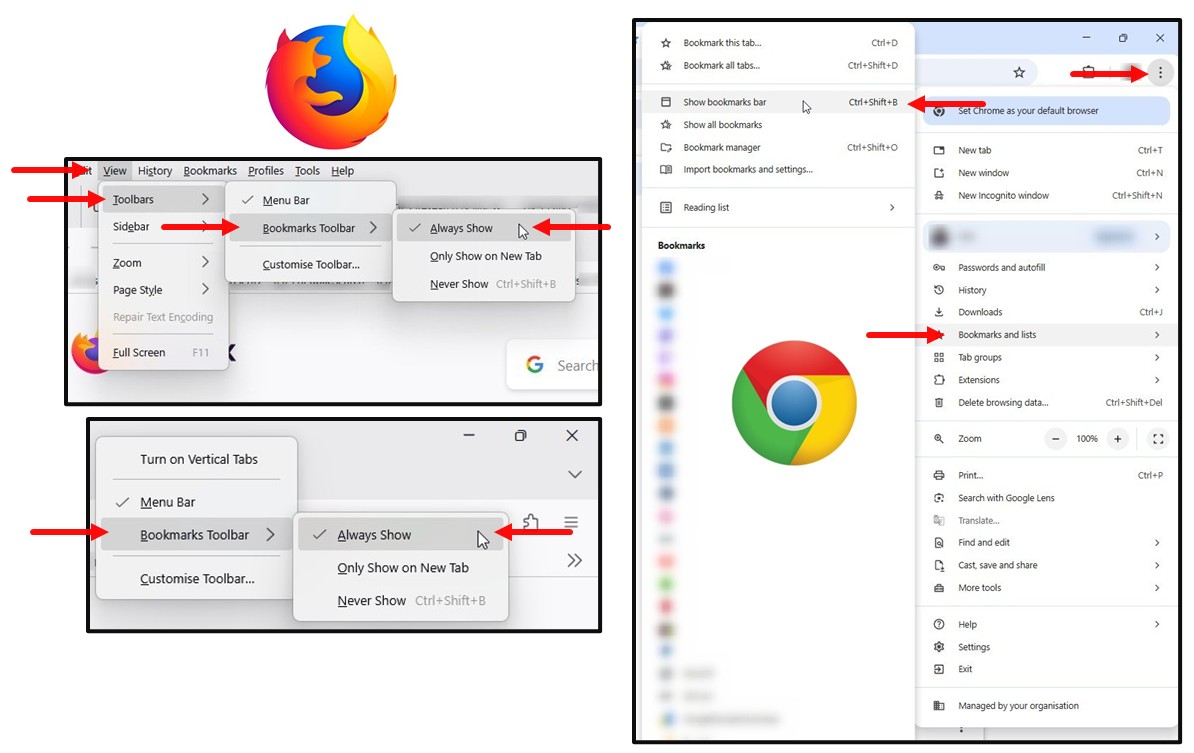
Firefox - There are two methods to view the Bookmarks Toolbar. Firstly from your browser select View, then select Toolbars, and then select Bookmarks Toolbar, and then select Always Show. Or Right Click in the top area of your browser, near to the Minimize, Maximize & Close selectors, a small text box will open, from which you should select Bookmarks Toolbar, and then select Always Show.
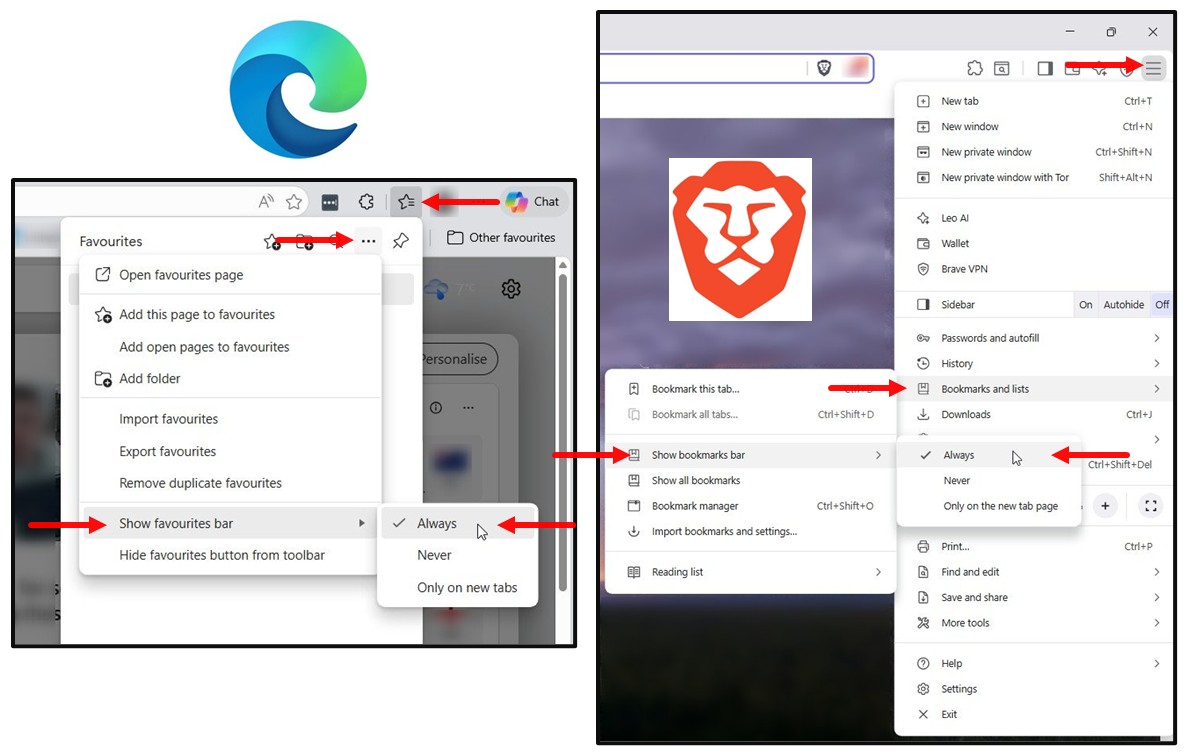
Microsoft Edge - Click in the Favourites Star Icon on the top righthand side of your browser, then select the three dots, and then select Show Favourites Bar, and then select Always.
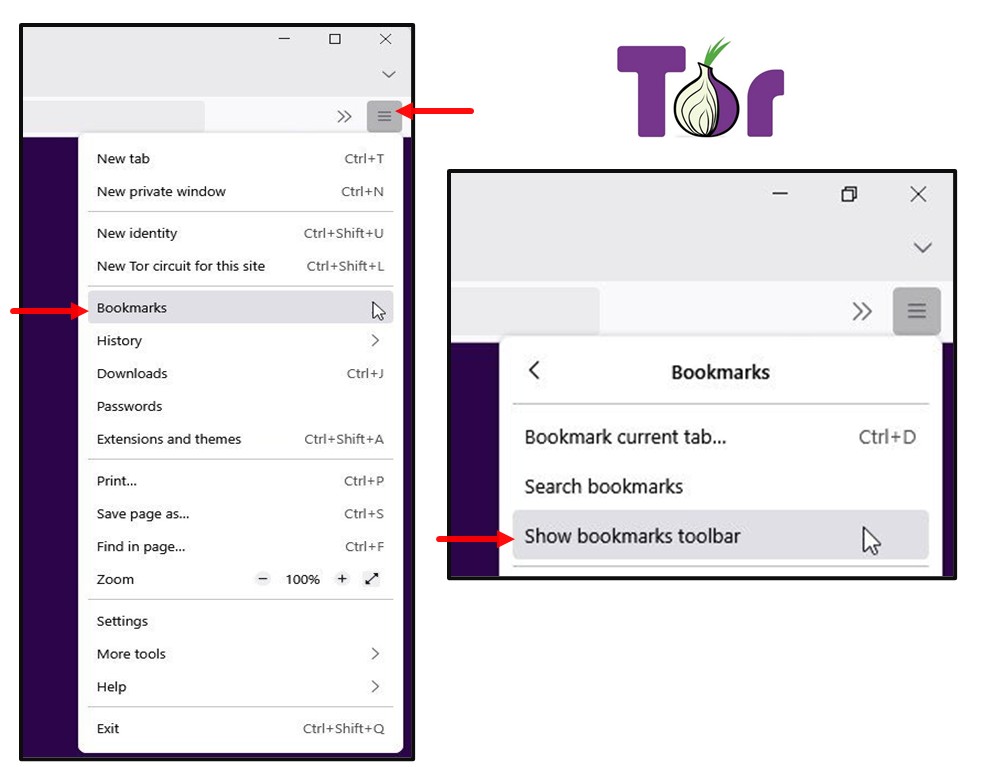
Tor - Click on the three lines at the top righthand side of the browser, and then select Bookmarks, and then select Show Bookmarks Toolbar.
Bookmarklets
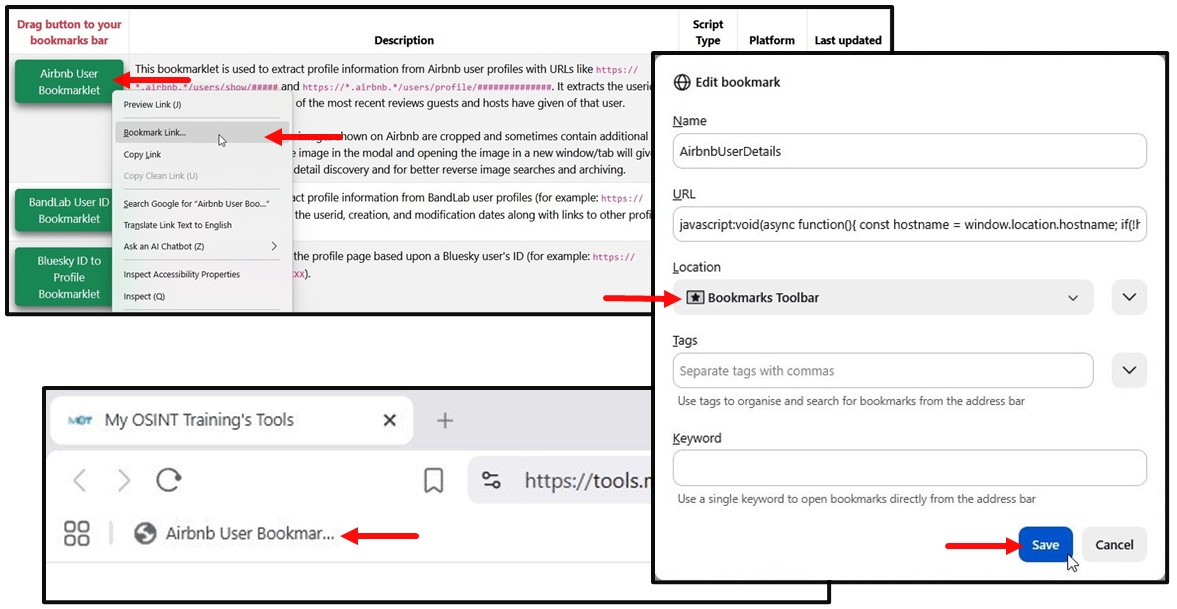
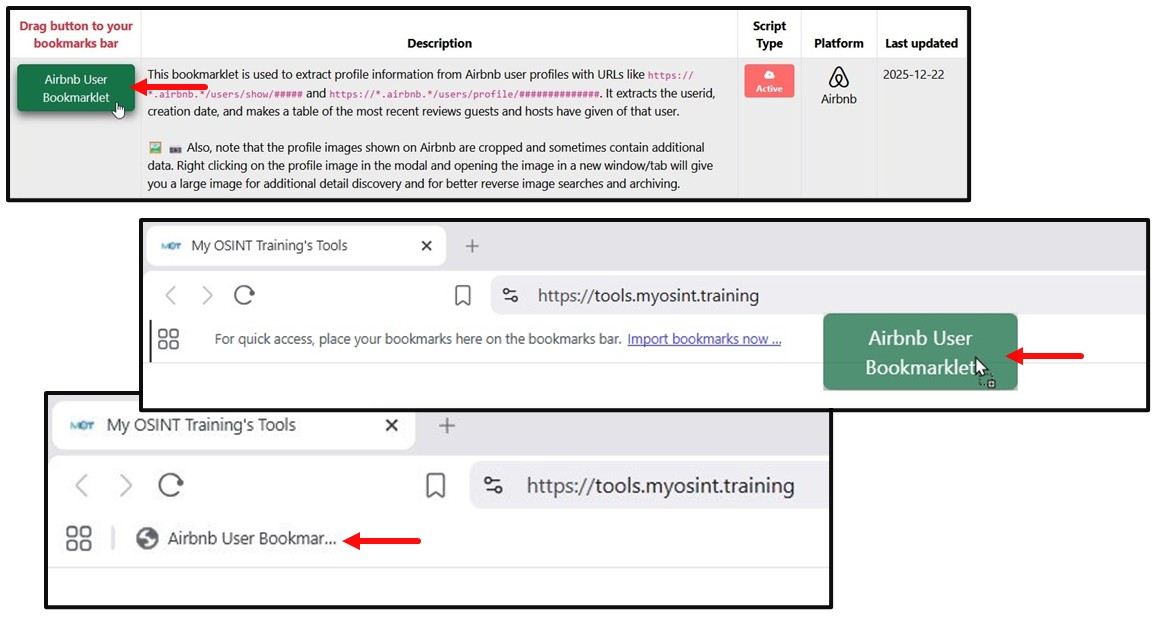
To install a Bookmarklet from the MyOSINT.Training site, mostly you can just Right Click on the Bookmarklet and select Bookmark Link, make sure the location is set to Bookmarks Toolbar, and then Save, and it will be added to your Browsers Bookmarks Toolbar.