Please Donate To Help Us Run This Site


Telegram Details & Links
(This page was last updated on the 07/05/2026)
**************************************
Telegram Guidelines For Law Enforcement can be found Here
**************************************

Useful Details & Articles To Help Investigate Telegram Accounts

Locating A Telegram Account By A Mobile Number
If you have a subjects mobile number, then it can be easily searched on a site such as OSINT Industries, or any of the others shown on the Mobile Phone page of our website to locate any Telegram account linked to it. Or if you are using a burner phone, simply by putting the number into the contacts of your phone and then opening the Telegram app, selecting the Contacts or New Message functions, and anyone on Telegram from your contacts will be shown, which is done without them being notified.
Be aware that whilst the account holders name is displayed as it was put it on your contacts, under their profile image and mobile number on Telegram is their Telegram username, which may open up a new area to research.
By locating an account for a user, you will now know some additional information using this method, including;
- The account holders profile photo or avatar, which can then be checked using a reverse image search or used to
match against other online accounts
- The account holders welcome phrase, which can then be searched or used to match against other online accounts
- The date and time an account holder was last active on Telegram
Accessing A Telegram Users Account From A Browser
Once you know a users' Telegram account name, then you can access their online profile from a browser, by adding their account name at the end of the URL at https://t.me/, which may reveal additional information.
How To Obtain A Telegram Users Account ID Number



Useful Telegram Search Sites (groups & channels search sites etc)













Other Useful Telegram Tools

Useful Python Tools For Telegram



Download A Copy Of A Telegram Channel
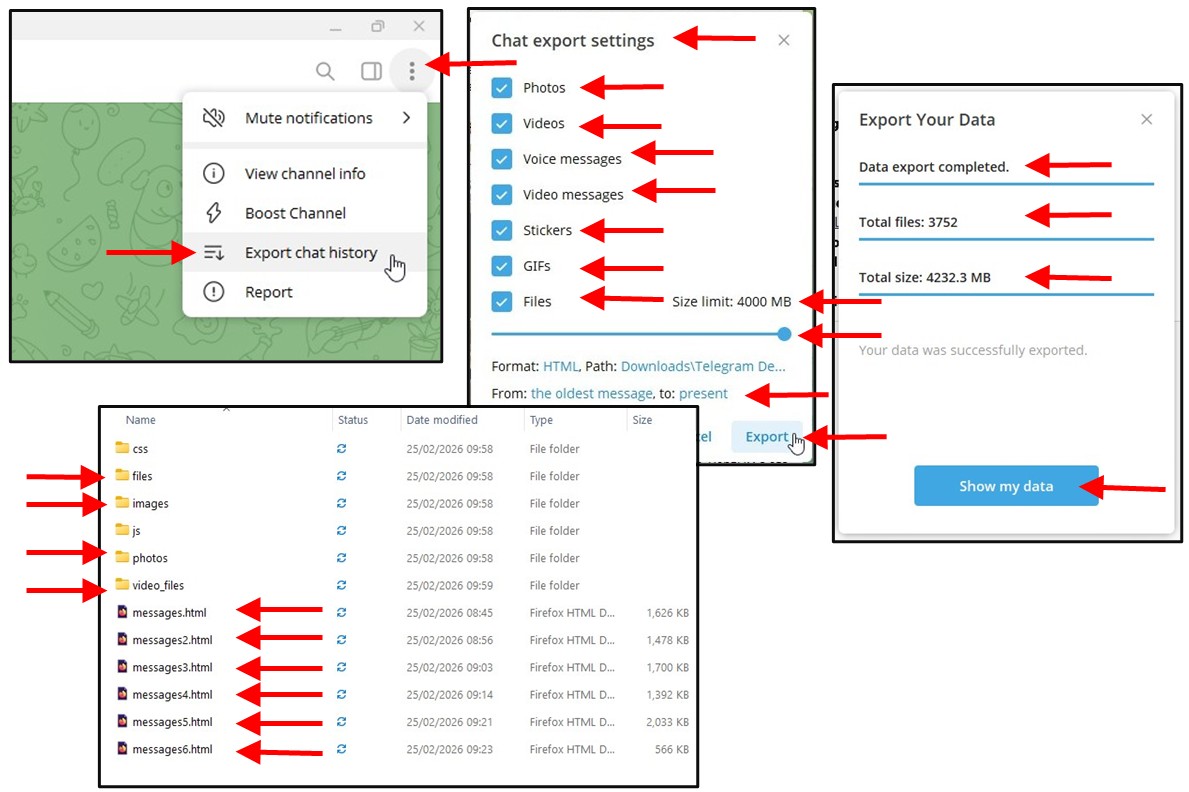
To export a copy of a Telegram Chanel, you must use the Telegram Desktop App, not the Smartphone App. Then open the Telegram Desktop App and go to the channel you want to export and;
- Click the three vertical dots in the top right corner and select Export Chat History
- Then select all the types of media you want to download (photos, videos, files, voice messages, etc.)
- Then adjust the Size Limit, moving the slider to the maximum size limit allowed (larger Channels
may need to be exported in sections, so photos, then videos, then messages etc)
- Accept the Format Type as HTML, as it is readable in a web browser
- Then click Export, which may take a few minutes to complete
- When the all of the material has been Exported and downloaded, you can view the different file types
from their own folder, and you can view the messages in a Browser, and search it for keywords etc